How to bulk edit Shopify metafields across multiple stores (with AI)
A step-by-step guide to filling Shopify metafields in bulk, for products, variants, collections and more, across several stores with AI. Plus every other option and where each one falls short.
Metafields are the extra fields you add to your Shopify store: a material or care instructions on a product, an insole length on each size, an intro on a collection, a loyalty tier on a customer, or an author bio on a blog post. Shopify's own tools can bulk edit only some of them. The bulk editor covers products, variants, collections and customers, but you have to open variants through a special address. The product CSV covers product metafields but not variant metafields. Pages and blog posts have neither. Your options are those built-in tools, a paid import app such as Matrixify, or an AI assistant connected to your stores that makes the changes you ask for, after you approve them. If you run more than one store, you have to do the same job in every store, and small differences between the stores cause most of the mistakes.
This guide shows how to do it with AI in Manager for Shopify, and then covers every other option and where each one gets painful. Everything in it comes from tests we ran on November 15 and 17, 2026, on three Shopify development stores, with product, variant and collection metafields.
The short answer
| Your situation | Best option | Where it gets painful |
|---|---|---|
| A few dozen values on products, collections or customers, in one store | Shopify's bulk editor | You type or paste every value, and it can't read a spreadsheet |
| Product metafields from a spreadsheet | Shopify's product CSV import | It matches rows by product handle, not SKU, and does one store at a time |
| Variant metafields (per size or color) | Shopify's hidden variant bulk editor, an import app, or Manager for Shopify | The CSV can't import them at all, and the variant editor only opens from a special address |
| Pages, blog posts and other parts of the store | An import app or Manager for Shopify | Shopify has no bulk editor or CSV import for them |
| The same metafields in two or more stores | Manager for Shopify, with the AI account you already have | It's Windows only, and you approve the changes yourself |
| Thousands of values | Manager for Shopify, which uses Shopify's bulk operations, or an import app | Without a check first, a mistake spreads to thousands of items at once |
Metafields in plain words
A metafield is an extra field Shopify lets you add to almost any part of your store. Three separate things are involved, and most confusion comes from mixing them up:
- The field itself. Shopify calls this a definition. You create it once per store under Settings → Custom data, where you choose which part of the store it belongs to and what kind of data it holds: text, a measurement, a weight, a date and so on. Each field also has an internal name, such as
custom.insole_length. You'll see that name on the field's page, and you can use it when you ask an AI for a specific field. - The value. This is what's filled in on one product, variant, collection or page, for example
26.2 cm. - Where it shows. Your theme decides whether customers see the value. A value can be saved and still appear nowhere.
These are the parts of a store where you'll most often use metafields, and what Shopify gives you for each one:
| Part of the store | Example fields | Shopify's bulk editor | Shopify's CSV import |
|---|---|---|---|
| Products | Material, care instructions, country of origin | Yes | Yes, in the product CSV |
| Variants (each size, color or pack) | Insole length, packed weight, per-size measurements | Yes, but only from a direct address | No |
| Collections | Intro text, banner image, buying guide | Yes | No collection import |
| Customers | Loyalty tier, birthday, wholesale account number | Yes | Some field types only |
| Orders and draft orders | Gift message, delivery notes | No | No |
| Pages, blogs and blog posts | Page subtitle, author bio, reading time | No | No |
| Markets, locations and companies | Market-specific notes, store hours, payment terms | No | No |
Before you create a field, decide where it belongs. A detail that's the same for every size and color, such as the material, goes on the product. A detail that changes per size or color, such as insole length, goes on each variant. A detail shared by many items, such as one size chart used by a whole collection, works best as a metaobject (a reusable entry) that each product links to.
Also check Shopify's category metafields. Shopify adds some product fields on its own based on the product category, such as color or material. If you create your own color field next to Shopify's, you end up with two fields to keep in sync.
Variant metafields: the hardest case
Most people who search for bulk editing metafields are stuck on variants, and for good reason. In our tests, every Shopify tool got harder or stopped working at the variant level:
- The product CSV can't import them. Shopify says so directly: "Variant metafields aren't supported for product CSV import/export."
- The bulk editor hides them. The variant version exists, but only behind a direct address. Here's how to open it.
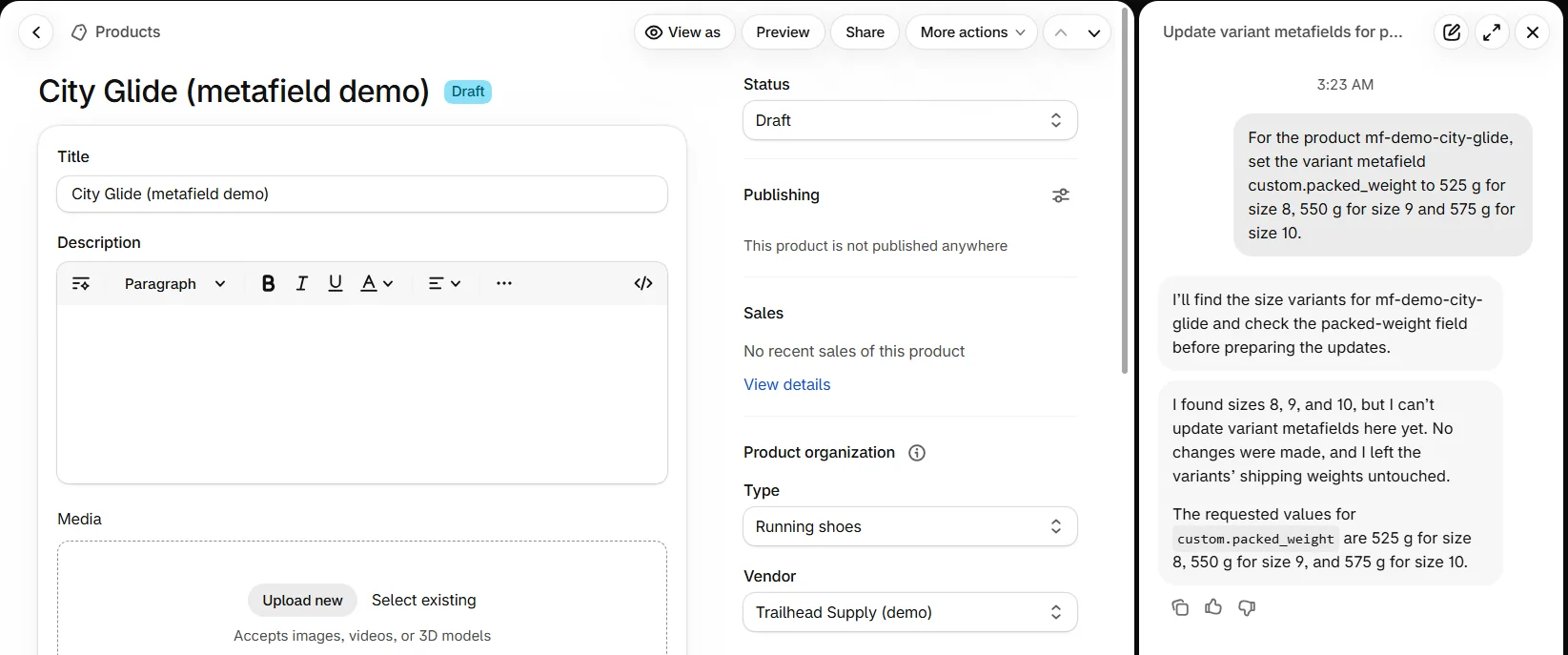
- Sidekick declined. Asked to fill a variant field, it replied: "I can't update variant metafields here yet."
- Themes don't offer them easily. In Shopify's Horizon theme, the theme editor didn't list variant fields at all, and the value didn't change when a shopper picked another size.
Manager for Shopify handles variants the same way as every other part of the store, and Metafields not showing on your store? covers the theme problems.
Why several stores make this harder
Every Shopify tool works on one store at a time. With one store, that's fine. With two or three stores, the same job runs into new problems:
- The fields drift apart. You set up a field separately in each store. One store might be missing it, or might have it as plain text where another has it as a weight. Values copied into a store without the matching field either fail or never show up.
- The same item isn't the same record. Shopify gives the same product, collection or page a different internal ID in each store. To match items across stores, use the SKU for variants and the handle (the end of the item's web address) for products, collections and pages, and only when those are unique.
- Every change happens two or three times. One store operator put it this way: "every product update has to happen two or three times… Miss one and the stores drift apart."
- Mistakes multiply. A wrong value written to three stores means three cleanups.
How to bulk edit metafields across stores with Manager for Shopify
We built Manager for Shopify for jobs like this one. It's a Windows desktop app that connects the AI you already use (ChatGPT, Claude, Grok, OpenCode and others) to your Shopify stores. Each store has its own workspace, and one conversation can work across all of them. Manager does the store work through Shopify's own official tools, so you don't need to know how they work. It works the same way for every part of the store that has metafields.
Set up Manager
- Download Manager for Shopify and install it. The 7-day trial doesn't need a card.
- Add each store with Add project. You can sign in to Shopify to list your stores, or type the store's address. Approve the connection in your browser. Each store gets its own workspace.
- Connect your AI account from the model menu in the message box. Use the account you already pay for.
- Set the mode in the message box to Supervised. Manager then asks you before it changes anything in a store.
Using ChatGPT or Claude to write product descriptions doesn't give them access to your stores. That access is what step 2 adds.
Products, variants and collections can be changed as soon as a store is connected. Customers, orders, pages and blog posts need an extra permission from Shopify. When the AI first needs one, Manager asks you before requesting it, and that's true in every mode.
Ask for what you need
There's no special format. Describe the job the way you'd explain it to a colleague, for example:
- "Fill insole length on every Ridge Runner variant in all three stores, using the supplier sheet in my Downloads folder."
- "Create a collection intro field in store B like the one in store A, and copy the intros over for the same collections."
- "Set care instructions to 'Hand wash cold' on every product tagged trailhead in both stores."
The AI works out which fields exist in each store and finds the right products, variants or collections. In our test, it also showed a plan before changing anything. In Supervised mode, Manager then shows each action and waits for Approve once, Allow session or Deny. Check that the request names the store you meant. Long requests can be cut off in the approval box, so for jobs across several stores it helps to ask the AI to work on one store at a time. If you can't see which store a request is for, deny it and ask.
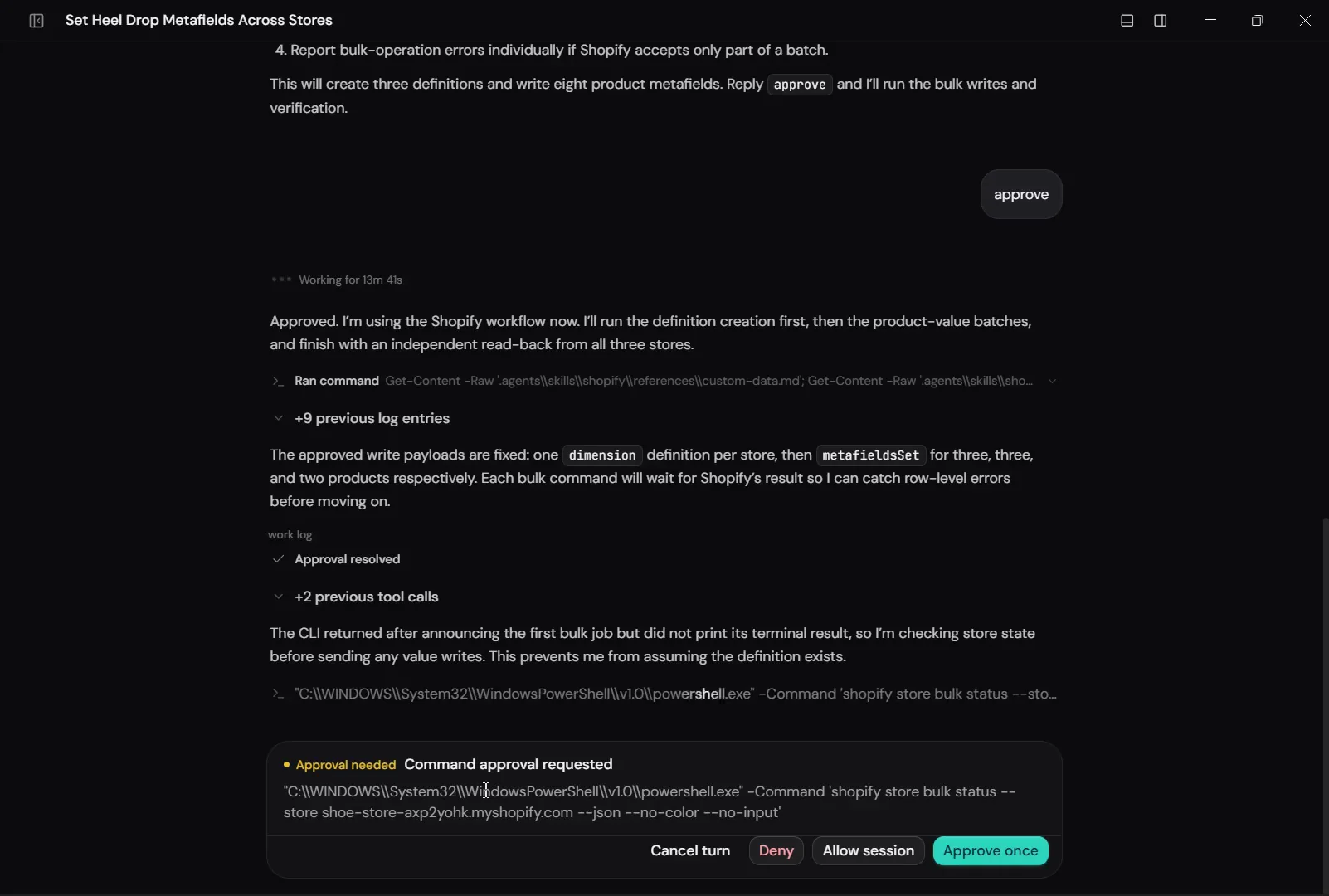
For big jobs, the AI uses Shopify's bulk operations. You don't set anything up: the AI hands Shopify one long list of changes, and Shopify processes the whole list in the background. On November 15, 2026, a development store with 28,759 variants gave us these results:
| Job | Size | Time on Shopify | Errors |
|---|---|---|---|
| Export every variant with its metafields | 28,759 variants | 54 seconds | 0 |
| Fill one metafield on every variant | 28,759 values | 76 seconds | 0 |
| Remove those values again | 28,759 values | 75 seconds | 0 |
To compare, we sent ten changes one at a time, 25 values each, and that took 30 seconds. At that pace, we estimate the 28,759 values would have taken close to an hour.
How we tested it
On November 17, 2026, we used Manager 0.6.1 in Supervised mode, with one conversation across three development stores. We asked it to add a new heel drop field to the shoes in every store and fill in the values. It looked at all three stores without changing anything, showed a plan that named each store, and waited for approval. It then created the field in each store, filled the values with a bulk operation, and read them back. Everything matched the plan.
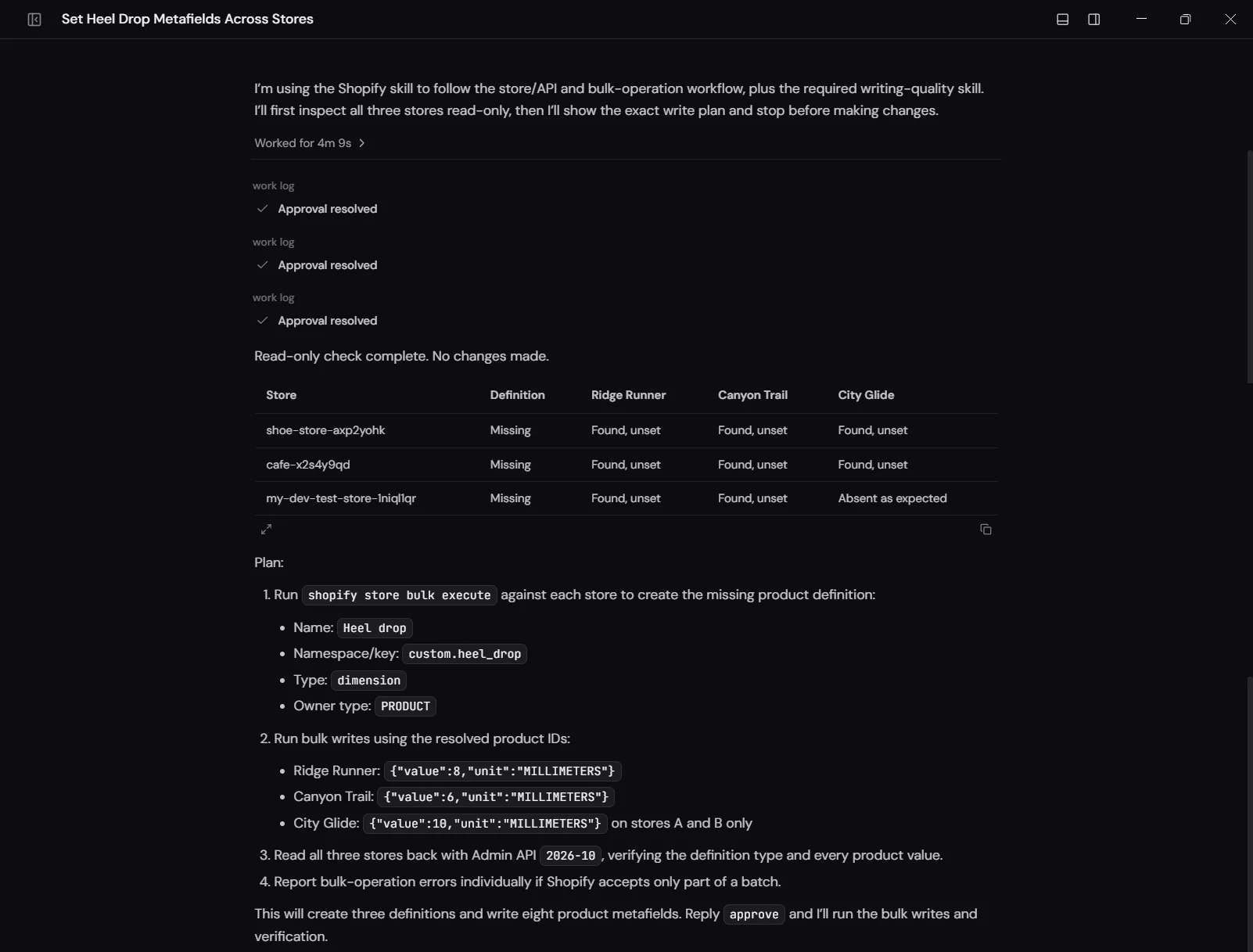
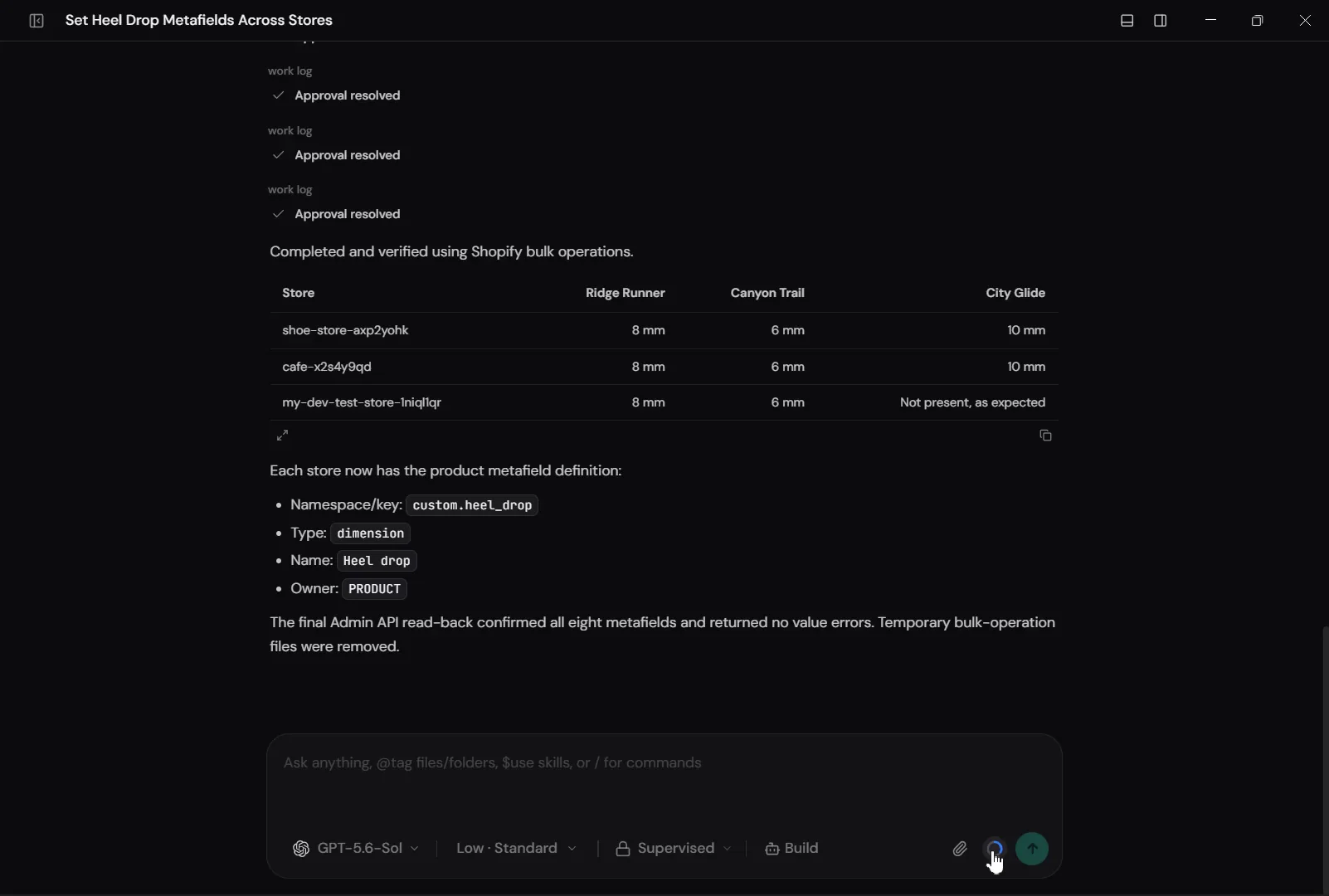
Two days earlier, we ran a harder version with a messy supplier sheet. We wanted to see whether an AI would catch problems before it changed anything, so we planted 11 of them:
- In the stores: one store was missing a field, one had a weight field set up as plain text, one SKU was typed twice, one store didn't sell one of the shoes, and one shoe already had a material that differed from the sheet.
- In the sheet: one weight had no unit, one row spelled the material differently from the others, and the care instructions were blank for one shoe.
This time we asked the AI to look first and list every change it would make, without making any. We ran this part with Claude Opus 5.5 and the same Shopify tools Manager uses, and didn't tell it where the problems were. In about two minutes, it flagged all 11 problems, suggested no wrong changes, and didn't treat any blank cell as a reason to delete something. That's one run on a small test we designed, so it isn't a benchmark, but it shows how well a current model handles messy data.
After we decided the open questions (for example, that the 0.78 weight meant 780 g), the AI filled the values, and all 72 values matched when we read them back. We also filled a collection intro field on three collections the same way, and all three matched.
Tips for big or risky changes
You don't need any of these for a quick edit. They're worth asking for when the data is messy, the job is large, or several people edit the same stores:
- Ask it to look before it changes anything. "Check first and tell me what you'd change" catches missing fields and typos before they reach three stores.
- Say what blank cells mean. Tell the AI whether a blank cell in your file means "leave it as it is" or "clear the value". We told it to leave those values as they were.
- Ask it not to replace existing values without asking. That way, a value someone set on purpose comes back to you as a question.
- Protect your team's edits. Ask the AI to skip any value that changed after it first looked. Shopify can do this for you: when we changed a value by hand after the AI had looked, Shopify refused the update and nothing was lost.
- Try a few first. Have it change five items in one store before running the rest.
- Ask it to read the values back. A table of what you asked for next to what's now saved is better than a success message.
- Field types can't be changed. Shopify doesn't let you change a field's data type after you create it. If the field has no values yet, the AI can delete it and create it again. If it already holds values, talk to whoever set it up first.
Benefits
- One conversation across several stores, with each store's work kept separate.
- Works for every part of the store that has metafields, from products and variants to collections, pages and blog posts.
- Ask in your own words. There's no template or import format to learn.
- Use the AI tool or provider you prefer, and switch without reconnecting your stores.
- In Supervised mode, nothing changes in a store until you approve it.
- Large jobs go through Shopify's bulk operations without any setup on your side.
- A $59 one-time license after a 7-day trial, with no card needed for the trial.
Downsides
- Windows only for now. Tell us if you need macOS or Linux.
- It doesn't include an AI subscription. You bring your own ChatGPT, Claude or other account.
- There's no dedicated metafield screen. You work through the conversation, so check what the AI says it's going to change.
- The AI is only as careful as what you ask for. For big jobs, use the tips above and keep Supervised mode on.
Other ways to do it, and where each gets painful
Shopify's bulk editor
This one is free and built into Shopify, and it covers products, variants, collections and customers. For products, open Products, select some products, click Bulk edit, and add metafield columns from Columns. Shopify's bulk editing guide covers the basics.
Variant metafields are the part people can't find. A merchant in July 2026 was editing them one at a time, because the product bulk editor didn't show them. The variant version of the editor exists, but only behind a direct address:
https://admin.shopify.com/store/YOUR-STORE/bulk?resource_name=ProductVariant&edit=metafields.custom.insole_length
To use it, swap two parts of that address:
YOUR-STOREis the part after/store/in your admin address. If your admin is atadmin.shopify.com/store/trailhead-shoes/products, usetrailhead-shoes.custom.insole_lengthis your field's internal name. Open Settings → Custom data → Variants, click the field, and copy its namespace and key.
Paste the finished address into your browser while you're logged in to the store. When we checked on November 17, 2026, a grid opened with an Insole length column and the existing values. You can add more variant fields from Columns → Metafields.
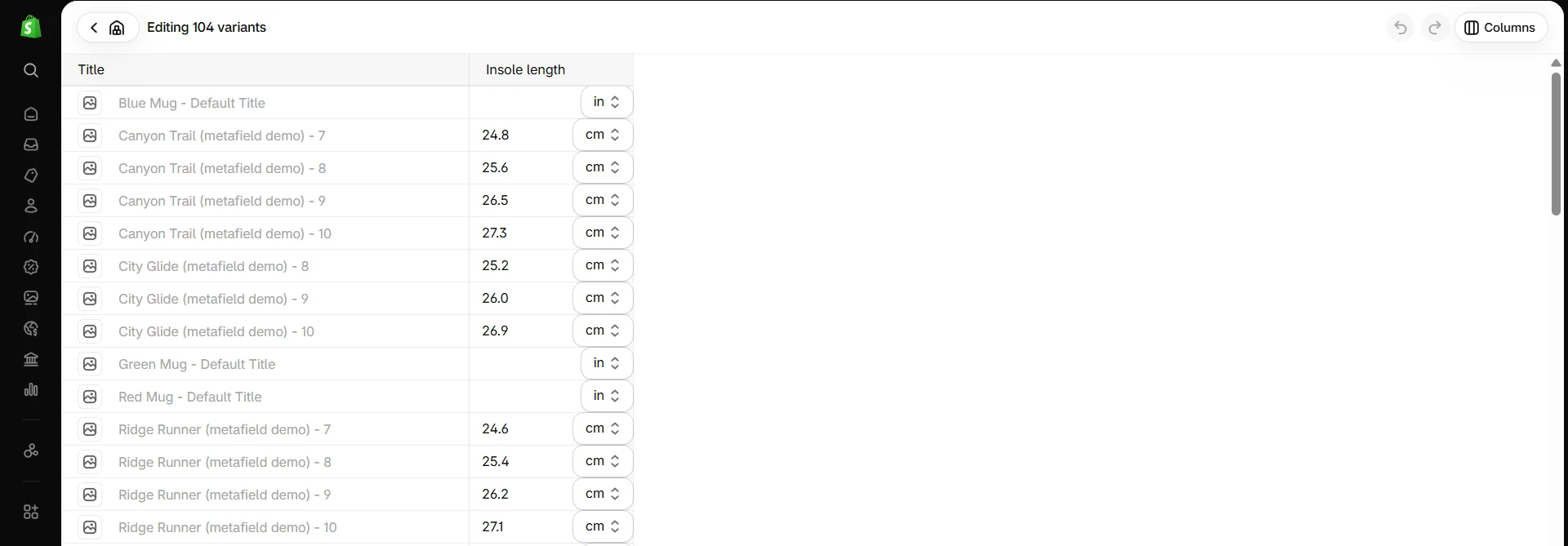
Where it gets painful: you type or paste every value yourself. The editor can't read a spreadsheet, can't match rows by SKU or handle, and doesn't warn you when a value changed since you last looked. The variant grid lists every variant in the store, not just the ones you want, so filter first. Pages, blog posts and orders aren't covered at all. With several stores, you repeat everything in each one.
Shopify's CSV import
Once a product field exists, it appears as a column in your product CSV export, with a header like Upper material (product.metafields.custom.upper_material). Fill in that column and import the file. Shopify's CSV guide lists which kinds of fields are supported. The customer CSV can also carry some customer fields: true/false, dates, numbers and single-line text.
Where it gets painful: variant fields aren't supported, and we found no change to that in Shopify's 2026 Editions. A merchant with about 6,000 variants asked for it in April 2026. Collections, pages and blog posts have no CSV import at all. The product CSV also matches rows by product handle, while supplier sheets usually use SKUs, and mixing the two is how imports end up creating duplicate products.
Import apps such as Matrixify, Ablestar or Metafields Guru
These apps can import metafields from a spreadsheet for most parts of a store, including variants, and some can do a trial run first.
Where it gets painful: you pay a monthly plan, you have to rearrange your spreadsheet into the app's column format, and you run each store as a separate import. The differences between stores are still yours to find and fix: a field that's missing in one store, a field set up as the wrong type, or a repeated SKU.
Shopify Flow
Flow can set metafields automatically on products, variants, collections, customers, orders and more, for example "when a product is added to this collection, fill in this field" (Flow actions).
Where it gets painful: Flow is built for rules that keep running in the background, not for loading a spreadsheet once. It has no actions for pages or blog posts.
Shopify Sidekick
Sidekick is Shopify's own AI assistant and comes free in your admin. Shopify's Fall '26 Edition lets it "make a plan, approve once, and watch Sidekick apply multiple changes at a time."
Where it gets painful: for our variant job, it declined. On November 17, 2026, we asked it to set packed weight on three variants of a test product, and it replied: "I can't update variant metafields here yet. No changes were made." It's good that it didn't pretend, and nothing changed. It also works only in the store whose admin you're using.
The Shopify connector in ChatGPT, Claude or Perplexity
Once you connect Shopify inside ChatGPT, Claude or Perplexity, the chat can make changes in your store, including metafields.
Where it gets painful: it works with one store at a time. Large jobs can also stall: in late October 2026, a merchant reported that the Claude connector stopped giving download links for large exports, which makes big jobs hard to finish inside the chat.
Claude Code or Codex with Shopify's AI Toolkit
These are developer tools. With Shopify's AI Toolkit installed, they can do the same metafield work as Manager. They're free apart from your AI plan, and we used this setup for the messy supplier sheet test above.
Where it gets painful: you work in a tool made for programmers, and with several stores you have to keep track yourself of which store each action is for, where the files are and what the AI was told. Manager does the same work through the same Shopify tools, inside an app built for running stores.
How the options compare
| Option | What it covers | Variant metafields | Reads a spreadsheet | Several stores | Cost |
|---|---|---|---|---|---|
| Manager for Shopify | Every part of the store with metafields | Yes | Yes, and you approve the changes | Yes, in one conversation | Your AI plan plus a $59 one-time license |
| Bulk editor | Products, variants, collections, customers | Yes, from a direct address | No, you type or paste | One store at a time | Free |
| CSV import | Products, plus some customer fields | No | Yes | One store at a time | Free |
| Import apps (Matrixify and others) | Most parts of the store | Yes | Yes | One import per store | Paid plans |
| Shopify Flow | Products, variants, collections, customers, orders and more | Yes | No | One store at a time | Free |
| Sidekick | The store you're in | Declined in our test | Not designed for it | No | Included in your plan |
| ChatGPT or Claude connector | One connected store | Yes | Yes | One store at a time | Your AI plan |
| Claude Code or Codex with AI Toolkit | Every part of the store with metafields | Yes | Yes | Yes, if you track each store | Your AI plan |
Metafields not showing on your store?
A saved value isn't the same as a displayed value. Shopify says that if your theme supports dynamic sources, "you can connect most metafields to your theme by using the theme editor." We tested the product page on a copy of Shopify's Horizon theme on November 17, 2026, without touching the live theme. Variants were the trouble spot:
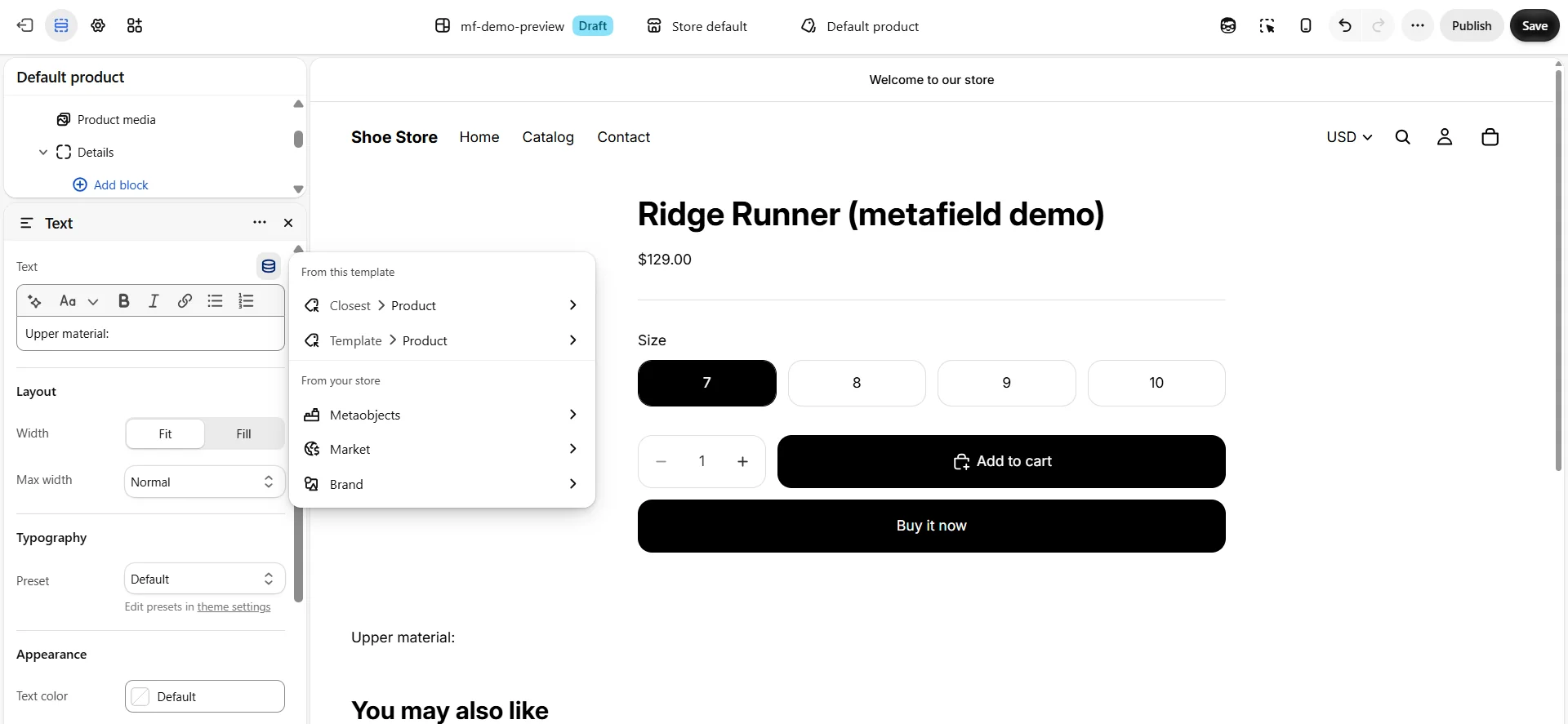
- Product metafields are easy. In the theme editor, a Text block on the product page connected to the upper material field through Connect dynamic source, and the value showed.
- Variant metafields aren't offered. The Text block's dynamic sources listed Product, Metaobjects, Market and Brand, but no variant. We used a Custom Liquid block with this one line instead, which you or your AI can paste in:
{{ product.selected_or_first_available_variant.metafields.custom.insole_length.value }}
- Picking another size didn't update the value. It kept showing the first size's 24.6 cm until the page reloaded on the new size, which then showed 27.1 cm. Making it update right away needs a theme change.
- A label typed into a Text block stays even when the value is empty. Canyon Trail has no care instructions in that store, and the page still showed "Care instructions:" with nothing after it.
The quickest fix is to ask your AI in Manager for Shopify. Describe what you see, for example: "Insole length isn't showing on the Ridge Runner page in store A. Find out why and fix it." The AI can check whether the field exists in that store, whether the value is saved on the right item, and how your theme displays it, and then fix whatever is wrong, whether that's a missing field, a value on the wrong item or a block that needs changing. Ask it to make theme changes in a copy of your live theme, so you can preview the result before you publish it. Editing themes needs an extra permission from Shopify, and Manager asks you before requesting it.
If you'd rather check it yourself, go through these in order. Most problems are one of the first three.
- Does this store have the field? Values copied from another store need the matching field in this store too.
- Is the value on the right item? A variant value won't show in a block that reads the product, and a product value won't show in a block that reads the variant. The same goes for a collection field placed on a product page.
- Is the block on the template the item actually uses? Some products, collections and pages use an alternate template.
- Does the block accept that kind of field? In the theme editor, a field whose type the block can't show won't appear in Connect dynamic source. Text blocks accept the most types.
- Is it a field an app created? App fields have their own internal name instead of
custom, so a block or line of code written forcustomwon't find them.
Shopify metafield limits (November 2026)
| Limit | Value | Source |
|---|---|---|
| Fields per part of the store (products, variants, collections and so on) | 256 of your own, plus 256 for each installed app | Metafield limits |
| Pinned fields per part of the store | 50 | Metafield limits |
| Fields usable in automated collection conditions | 128 | Metafield limits |
| Items in a list field | 128 (1,024 when the list links to metaobjects) | Metafield limits |
| Size of one value | 64 KB for most types, 2 MB at most | Metafield limits |
| One bulk operation | A file of up to 100 MB, finished within 24 hours | Bulk operations |
| Variant metafields in the product CSV | Not supported | Product CSV |
Frequently asked questions
What is the best way to deal with metafields in Shopify?
How do I bulk edit metafields in Shopify?
For products, collections and customers, open Shopify's bulk editor, add metafield columns, and type or paste the values. For product metafields from a spreadsheet, use the product CSV import. For variants, pages, blog posts, or values from a supplier sheet, use an import app, or an AI tool such as Manager for Shopify: describe the change, and approve it before it's made.
Which parts of a Shopify store can have metafields?
Products, variants, collections, customers, orders, draft orders, pages, blogs, blog posts, markets, locations, companies and the shop itself, among others. You create the fields under Settings → Custom data.
Can you import variant metafields with a Shopify CSV?
No. Shopify's product CSV supports product metafields but not variant metafields. Use the variant bulk editor, an import app such as Matrixify, or an AI tool connected to your store, such as Manager for Shopify.
How do I bulk edit variant metafields in Shopify?
For a handful of values, open the variant bulk editor at admin.shopify.com/store/YOUR-STORE/bulk?resource_name=ProductVariant&edit=metafields.custom.YOUR_FIELD, then type or paste the values. To fill them from a supplier sheet, use an import app, or ask an AI tool such as Manager for Shopify to fill them from your file and approve the changes.
Can you bulk edit collection, page or blog post metafields?
Collection metafields, yes: Shopify's bulk editor covers collections. Pages and blog posts have no bulk editor or CSV import, so use an import app or an AI tool connected to your store. In Manager for Shopify, pages and blog posts need an extra Shopify permission, which Manager asks you about before requesting it.
How do I bulk edit metafields across multiple Shopify stores?
First make sure every store has the same fields with the same data types. Then match your rows to items separately in each store, by SKU for variants and by handle for products, collections and pages, because internal IDs differ between stores. Manager for Shopify does both in one conversation across all your stores, and you approve the changes for each store.
How do I copy metafield definitions to another Shopify store?
Shopify has no copy button for this. List the fields in the first store under Settings → Custom data, then create the missing ones in the other store with the same name, internal name, type and rules. Do this before you copy any values. In Manager for Shopify, you can ask the AI to compare the two stores and create only the missing fields after you approve.
Can I change a metafield's type in Shopify?
Not once it's created. If the field has no values yet, you can delete it and create it again with the right type. If it already holds values, work out how to move them before you delete anything.
How fast are Shopify bulk operations?
In our test on November 15, 2026, a bulk operation filled one metafield on 28,759 variants in 76 seconds on Shopify's side, and exporting all 28,759 variants took 54 seconds. Your times will depend on the store and on how busy Shopify is.
Can ChatGPT or Claude bulk edit Shopify metafields?
Yes, once they're connected to your store. The Shopify connector in ChatGPT or Claude works with one store at a time. Manager for Shopify connects your ChatGPT, Claude or other account to several stores at once and asks for your approval before anything changes. Shopify Sidekick declined to update variant metafields in our test.
Can AI bulk edit Shopify metafields safely?
Yes, if you approve the changes before they're made. For big or messy jobs, ask the AI to check before changing anything, try a few items first, and read the values back afterwards. In our test with a messy supplier sheet, the AI flagged all 11 planted problems before changing anything.
Do metafields help SEO?
Not by themselves. Search engines see what your theme displays. Metafields help when they put accurate, specific details on the page.