How to use ChatGPT or Claude to manage your Shopify store in 2026
Learn how to connect ChatGPT, Claude, and other AI tools to Shopify, compare the available options, and choose the right setup for one or multiple stores.
Running a Shopify store comes with a long list of small but important jobs. Products need updating, inventory needs checking, orders need reviewing, discounts need adjusting, and the theme always needs one more fix. In 2026, ChatGPT, Claude, and other AI assistants can help with much of this work. The missing piece is giving them a proper connection to your store.
This guide compares four ways to use AI with Shopify in 2026: Shopify Sidekick, Manager for Shopify, the Shopify connectors inside the ChatGPT, Claude, and Perplexity websites, and desktop or command-line AI agents using Shopify's plugin, AI Toolkit, and Shopify CLI.
| Option | Best for | Main tradeoff |
|---|---|---|
| Shopify Sidekick | Quick questions, basic operations, and small theme edits | Not a frontier model, and less reliable for complex, bulk, or long-running work |
| Manager for Shopify | Several stores, flexible AI tools, bulk operations, themes, and apps | Currently available only for Windows. We built it, so our bias is clear, but we think it is the most comfortable option |
| Shopify connectors in the ChatGPT, Claude, or Perplexity websites | Routine operations in one store | Limited theme workflow and no Shopify-specific workspace |
| Desktop or CLI AI agents with Shopify's plugin, AI Toolkit, and Shopify CLI | More control over themes, apps, GraphQL, and store operations | Requires a basic local setup and uses a general chat or coding interface |
Option 0: Why not just use Shopify Sidekick?
Sidekick is the obvious place to start because Shopify includes it with every plan. It already has access to the store you are viewing, requires no separate setup, and shows proposed changes before you approve them.
Sidekick works well for quick questions, basic store operations, and small theme edits. The limits show when a request needs more than a simple one-step change. Sidekick also does not match the frontier-level intelligence of the latest GPT and Claude models, which makes it less reliable for complex tasks, bulk edits, medium-to-complex theme changes, and long-running work that needs repeated input, manual saves, and checks. In the recording below, we asked it to create a product with two color options, but it did not complete the setup correctly.
For anything beyond basic work, it is usually better to connect Shopify to frontier AI models such as GPT, Claude, Grok, GLM, Kimi, etc.
Creating a product with variants using Sidekick
Option 1: Manager for Shopify
We built Manager for Shopify to solve these limitations and make managing multiple stores easier. You can use the supported AI tool or provider you prefer across all your Shopify stores and handle multi-store operations from one app.
We support AI tools and providers including ChatGPT, Claude, Grok, and OpenCode. Each store has its own workspace, so you can move between stores without disconnecting and authorizing them again. Your store connections stay in place when you switch tools or providers, so you are not locked into one vendor.
We built Manager to handle Shopify store operations and development work across products, collections, themes, and apps.
Benefits
- Keep multiple Shopify stores connected in separate workspaces.
- Choose your AI tool or provider without vendor lock-in.
- We rely on Shopify's official CLI and connector app rather than building our own custom Shopify integration. We use the official libraries provided by the supported AI tools and providers.
- We keep adding Shopify-specific features around real daily workflows, so routine store work becomes easier to manage.
- Add or edit products and collections, run bulk operations, manage discounts, other store operations, theme operations, app development, etc.
- Use the AI account you already pay for.
Downsides
- We currently support Windows only. If you are interested in a macOS or Linux version, contact us.
- We do not bundle an AI subscription. You need your own account for ChatGPT, Claude, or another supported service.
Why don't you ask the Manager to do that?
Try Manager for Shopify for seven days without a card. After the trial, the Windows license is $29. Download Manager for Shopify.
Option 2: Using ChatGPT, Claude, or Perplexity on the web
You can install Shopify's connector inside the ChatGPT, Claude, or Perplexity website, then manage one Shopify store from the chat you already use. The connector gives the AI a defined set of Shopify tools rather than unrestricted access to the store.
The Claude connector page shows dedicated tools for creating and updating products and collections, changing product status in bulk, setting inventory, creating discounts, reading orders and customer data, running analytics queries, and uploading images. These are useful everyday store operations, and they are the clearest public picture of what this type of connector is designed to handle.
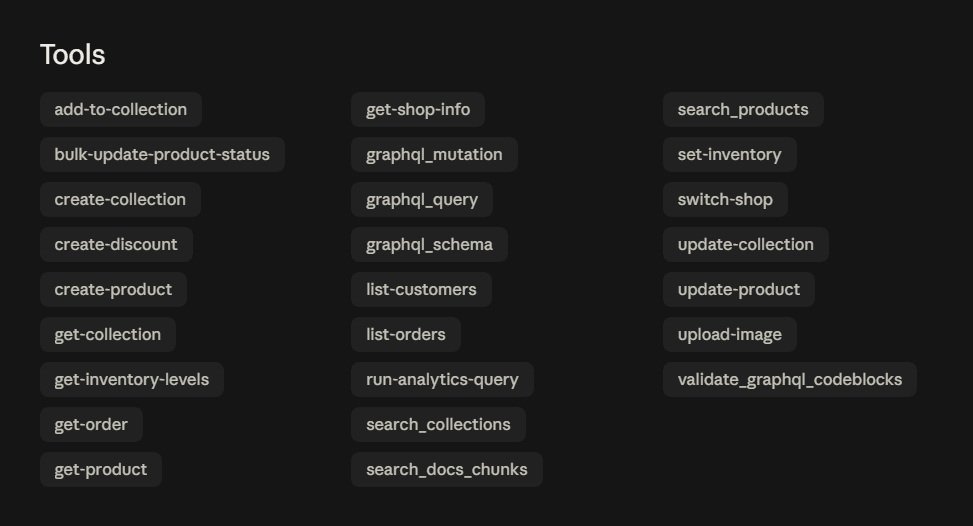
Theme work is more limited. The connector has GraphQL query and mutation tools, so it can retrieve and update individual theme files on an unpublished theme. That can be enough for a small, contained edit. It is not a comfortable way to make a larger change. There is no theme pull command, no full local copy of the codebase, and no built-in preview. You would need to create a copy of the live theme, ask the agent to make the changes, then review and publish that copy yourself.
The tool list also includes switch-shop, which changes the active store. That is different from multi-store management. The connector works with one active store at a time and is not designed to compare or update multiple stores in one coordinated operation.
This is the easiest option for someone who already uses one of those services and manages one store.
How to connect your store
- Open the Shopify connector from inside ChatGPT, Claude, or Perplexity.
- Sign in to Shopify when the app sends you to the Shopify admin.
- Choose the store you want to connect.
- Review the information the app wants to view or change.
- Approve the connection and return to the AI chat.
Benefits
- Setup is short, and you can use the connector directly from the ChatGPT, Claude, or Perplexity website.
- Best for smaller store operations such as adding or updating products and collections, creating discounts, pulling analytics, etc.
Downsides
- The connector works with one active store at a time. Its
switch-shoptool does not provide coordinated multi-store operations. - Small theme changes may be possible, but larger changes are harder to manage. There is no preview, and the workflow requires more manual coordination.
- You are tied to the AI tool and models available on the website you chose. Switching tools means starting a separate workflow.
This option is worth giving a shot first. If it fits your use case, you can keep using it.
One point causes a lot of confusion. Connecting Shopify to ChatGPT for store management is different from making your products available to shoppers in ChatGPT. The management app lets you work on your store. Shopify's AI shopping features help customers discover products. They are separate features.
Option 3: Using a desktop app or CLI AI agent
You can also manage Shopify from desktop apps and command-line agents such as Codex, Claude Code, Cursor, VS Code, etc. In agents that support it, install Shopify's plugin for the same everyday store work covered in Option 2: products, collections, inventory, discounts, analytics, orders, images, etc.
Shopify's AI Toolkit is a separate addition for coding agents. Its current setup guides cover Codex, Claude Code, Antigravity CLI, Cursor, VS Code, etc. The toolkit includes Shopify's Dev MCP server, which gives the agent Shopify documentation and validation tools for GraphQL, Liquid/theme files, and Shopify components. It helps an agent write Shopify code correctly. It is not the store-management plugin itself.
For more control over store operations, multiple stores, better theme management, app development, etc., you can install Shopify CLI yourself or ask the agent to set it up. The CLI gives you a broader Shopify workflow, with direct commands for store tasks, switching between stores, pulling, pushing, and previewing themes, developing apps, and running Shopify GraphQL operations. Compared with the plugin or web connectors, it exposes more of Shopify and makes store work easier to carry through.
This is where we recommend trying Manager for Shopify first. We already bring those pieces together and give each connected store its own workspace. The app is built for managing Shopify stores, rather than making you work around a general chat or coding interface.
Without Shopify CLI, this option is essentially Option 2 in a desktop or command-line interface, so it inherits Option 2's benefits and downsides.
Benefits
Installing Shopify CLI expands what this option can do. The benefits below assume you have installed it or asked your agent to install it.
- Shopify CLI gives the agent full theme access through direct pull, push, and preview commands.
- Once Shopify CLI is installed, the agent can manage your Shopify store directly through it. The Shopify plugin and Dev MCP server are optional, not required for this workflow.
- Develop Shopify apps, make changes across an entire theme, and run Shopify GraphQL operations from the same local setup.
- Shopify CLI can work with several stores, so you are not limited to a single store.
Downsides
- These are general chat or coding apps, not Shopify management tools. Even with one store, you work around a generic interface instead of a workflow built for products, themes, and store operations. With several stores, keeping track of the selected store, theme folder, and agent context can get messy fast.
- You need to set up Shopify CLI before using this workflow. Depending on how you install it, you may need to install Node.js first.
- You are still tied to the AI tool and models available in the app you chose. Switching tools means setting up another workflow.
Choose this route if you want to use official Codex, Claude Code, etc. apps, preferably manage one store, or do not want to spend $29 on Manager for Shopify. If you want the same type of work in an app built around Shopify store operations, try Manager for Shopify first.
Which option should you choose?
Start with Sidekick if you need an occasional answer, a small store change, or a simple theme edit, and its results are good enough for your work. It is included with Shopify, with no separate setup or added cost.
Use Shopify's official ChatGPT, Claude, or Perplexity connector if you manage one store and want the shortest route to routine work such as product and collection updates, discounts, inventory changes, analytics, etc.
Choose a desktop or CLI agent if you prefer the official Codex, Claude Code, Cursor, or similar apps and are comfortable installing Shopify CLI. It gives you much more control over themes, apps, and Shopify operations. It is a sensible choice for one store, or if you do not mind managing the store, theme, and agent context yourself.
Choose Manager for Shopify if you manage several stores, want to switch AI tools or providers without rebuilding the workflow, or want Shopify operations, theme work, and app development in an interface built for Shopify. It is the better fit when you want the power of the CLI workflow without living in a general chat or coding app.
Frequently asked questions
What is the difference between Shopify's connector and the AI Toolkit?
The Shopify connector gives an AI app a defined set of tools for store work such as products, collections, inventory, discounts, orders, and analytics. Shopify's AI Toolkit is for coding agents. It provides Shopify documentation, API schemas, validation tools, and access to Shopify CLI workflows. The two can be used together, but they do different jobs.
Do I need Shopify CLI for Shopify theme changes?
Not for every small change. Without Shopify CLI, a connector can work with individual theme files through GraphQL, but that is limited. Shopify CLI gives the agent a direct workflow for pulling a theme, editing the complete codebase, previewing changes, and pushing the result back to Shopify.
Can Shopify CLI work with multiple stores?
Yes. Shopify CLI lets you authenticate and switch between stores, or target a store when you run a command. The commands support several stores, but a general chat or coding app does not give you a Shopify interface for keeping those stores, themes, and tasks organized.
Can Shopify CLI push changes to a live Shopify theme?
Yes. Shopify CLI can push changes to a selected theme, including the live theme, and can publish a theme when you choose that command. Review the changes and confirm the target store and theme before running a live push.
Is Shopify Sidekick suitable for bulk or complex store tasks?
Sidekick is better suited to quick questions, basic store operations, and small theme edits. It becomes less dependable as a task involves bulk changes, several steps, more involved theme work, or a long-running workflow.
Does Manager for Shopify include an AI subscription?
No. Manager for Shopify does not bundle an AI subscription. You connect your own account with a supported provider, then use that provider across your connected Shopify stores.